What Good Navigation Actually Has to Do
Before walking through the 10 website navigation examples, three plain-English jobs your nav has to do:
- Tell visitors where they are. A clear current-page indicator is the single most-skipped fundamental in modern web design.
- Tell them what else exists. A visitor on page X should be able to imagine the rest of your site without clicking around.
- Get them to the next page in one or two clicks. Anything more is friction; anything less probably means you're hiding something they need.
Most of the website navigation examples below clear all three. The ones that don't (Wikipedia, intentionally) are interesting precisely because of where they break the rules.
10 Website Navigation Examples Across Different Difficulty Levels
The 10 website navigation examples below are arranged by the type of problem they solve, not by visual style. Together they cover most patterns you'll encounter — global menus, mega menus, sidebars, breadcrumbs, mobile bottom bars, in-content navigation, and more. If you're looking for navigation menu examples at scales beyond a typical e-commerce site, this is the reference set.
1. GOV.UK — When You Have to Serve 67 Million People at Once
Type: Government services portal
Why it's worth studying: Possibly the most-tested information architecture in the world.
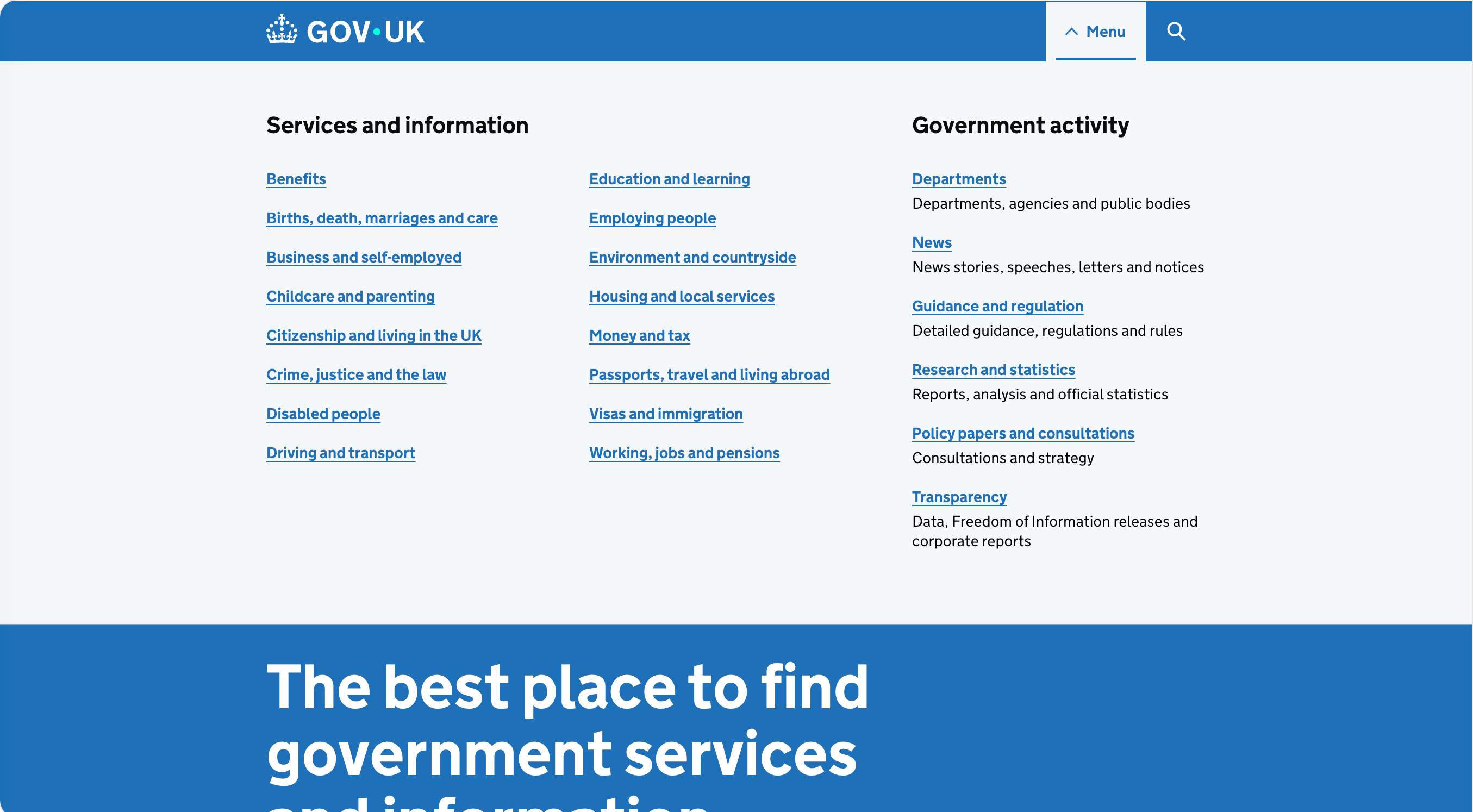
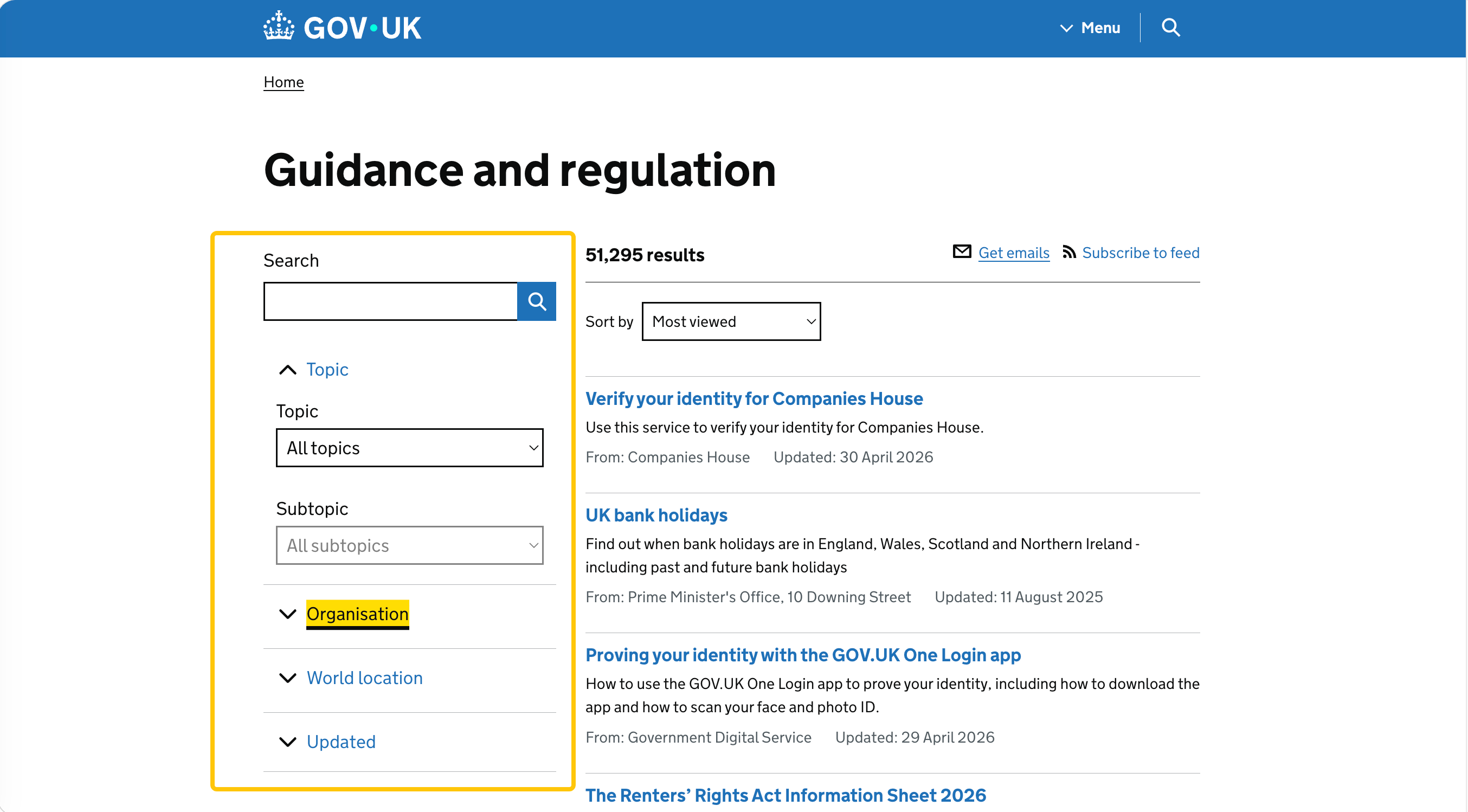
GOV.UK is the digital front door to the UK government. It serves citizens, businesses, and visitors across 25+ departments and thousands of services — from "renew my passport" to "register a death" to "set up a new business." The navigation has to make all of that findable without overwhelming a stressed visitor in a hurry.
The solution is radical clarity. The homepage doesn't have a mega menu, doesn't have featured imagery, doesn't have a hero. It has a search bar, a list of "Popular on GOV.UK" tasks, and a categorical browse list ("Benefits," "Births, deaths, marriages and care," "Childcare and parenting," etc.). That's it.
What's underneath is just as instructive. GOV.UK pioneered "step-by-step navigation" — for end-to-end journeys like *Learn to drive a car*, the site shows numbered steps in a sidebar, with each step linking to the relevant content. You always know where you are in the process and what comes next.
Three things to steal:
- Use plain-language category labels, not internal-org-chart labels. "Benefits" beats "DWP Services." "Money and tax" beats "HM Revenue & Customs Operations." Write your nav labels for visitors, not for departments.
- A search bar IS navigation for content-heavy sites. When you have thousands of pages, search is faster than browsing. Make it prominent, fast, and forgiving of typos.
- Step-by-step navigation for multi-page tasks. If your visitor's job takes 5+ pages to complete, give them a numbered sidebar showing where they are. It's a tiny addition with disproportionate impact on completion rates.
2. MoMA — The "Two Audiences, One Site" Problem
Type: Museum / cultural institution
Why it's worth studying: Solves the dual-audience navigation problem cleanly.
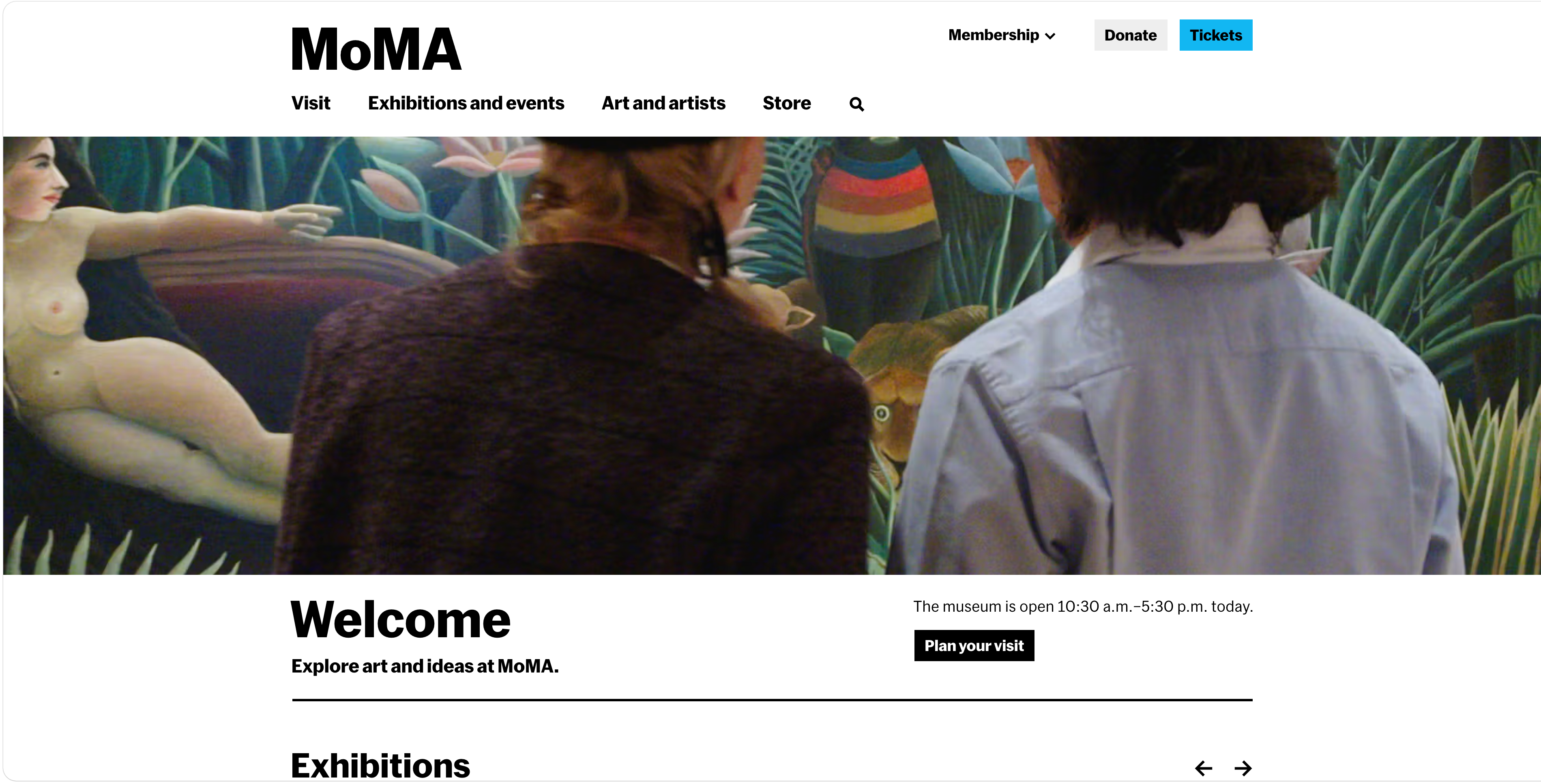
MoMA's website serves two completely different audiences with different jobs. Casual visitors want to see exhibitions, plan a museum visit, buy tickets. Researchers and educators want deep collection access, publications, scholarly material. The navigation has to give both groups a clean entry point without dumbing down the scholarly side or burying the visit-planning side.
The 2019 redesign solved it with two layers. The top horizontal primary navigation uses simple labels — Visit, Exhibitions, Events, Art and Artists, Store, Magazine — that work for both audiences. Each label opens a layered dropdown that splits into "primary" and "secondary" tasks. Art and Artists leads to both the public-facing collection browser AND the deep research tools.
The famous "Rauschenberg test" rule — internally, the team requires that the longest artist name in the collection (Rauschenberg) must fit into any nav container at any screen width — is a discipline most sites would benefit from copying.
- Split the dropdown into "primary" and "deep" tasks. Casual visitors get the visible options; advanced users get the bottom-of-dropdown links. Same nav, two depths.
- Set a "longest label" test for nav containers. Whatever your equivalent of "Rauschenberg" is — your longest product name, your longest service title, your longest article category — make sure it fits at every breakpoint. Truncated nav labels signal sloppiness instantly.
- Bold typography over icons for primary nav. MoMA's nav uses no icons at the top level. The labels do all the work. Icons add clutter unless they're truly globally understood (search, cart, account).
3. IKEA — The Mega Menu That Actually Works
Type: Large-catalog e-commerce (12,000+ products)
Why it's worth studying: A mega menu done right, when most are done badly.
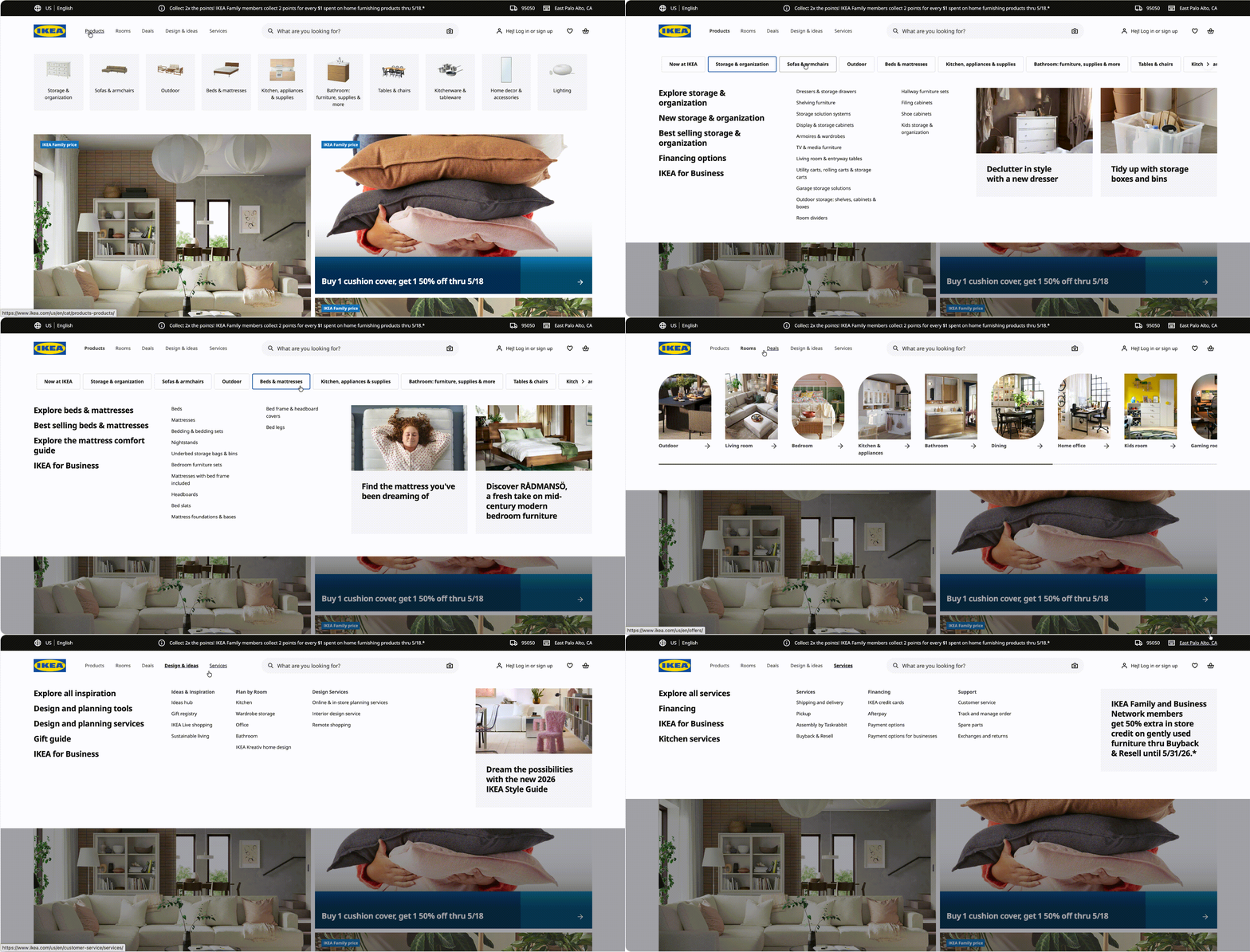
Mega menus have a bad reputation in 2026 — too many sites use them as a dumping ground for every link the team couldn't decide where to put. IKEA shows what they look like when used correctly. The top nav has just five items: Products, Rooms, Deals, More, Browse stores. Hovering "Products" opens a categorized panel showing every furniture category with small product photos as visual anchors.
The discipline is in what's not there. There's no "About Us." No "Sustainability." No "Newsroom." No "Careers." Those exist on the site — but at the footer level, not competing with the buying flow.
Three things to steal:
- Reserve your top nav for revenue paths only. Nothing in the top nav should compete with the conversion funnel. About-us content, careers, press — all those belong in the footer navigation.
- Use product photos as visual anchors in mega menus. A small image next to each category in a mega menu helps visitors recognize what they're looking for faster than label-only menus. Especially powerful for visual products.
- Different rooms is a smart secondary IA. "Living room / bedroom / kitchen" is how customers think about furniture. "Sofas / chairs / tables" is how the catalog is organized. IKEA exposes both — letting customers shop by their mental model, not the company's SKU tree. This is one of the cleanest large-scale website navigation examples in retail.
4. BBC Sport — Navigation That Adapts to Live Events
Type: Live news and content media
Why it's worth studying: Bottom-mobile-nav with measurable impact data.
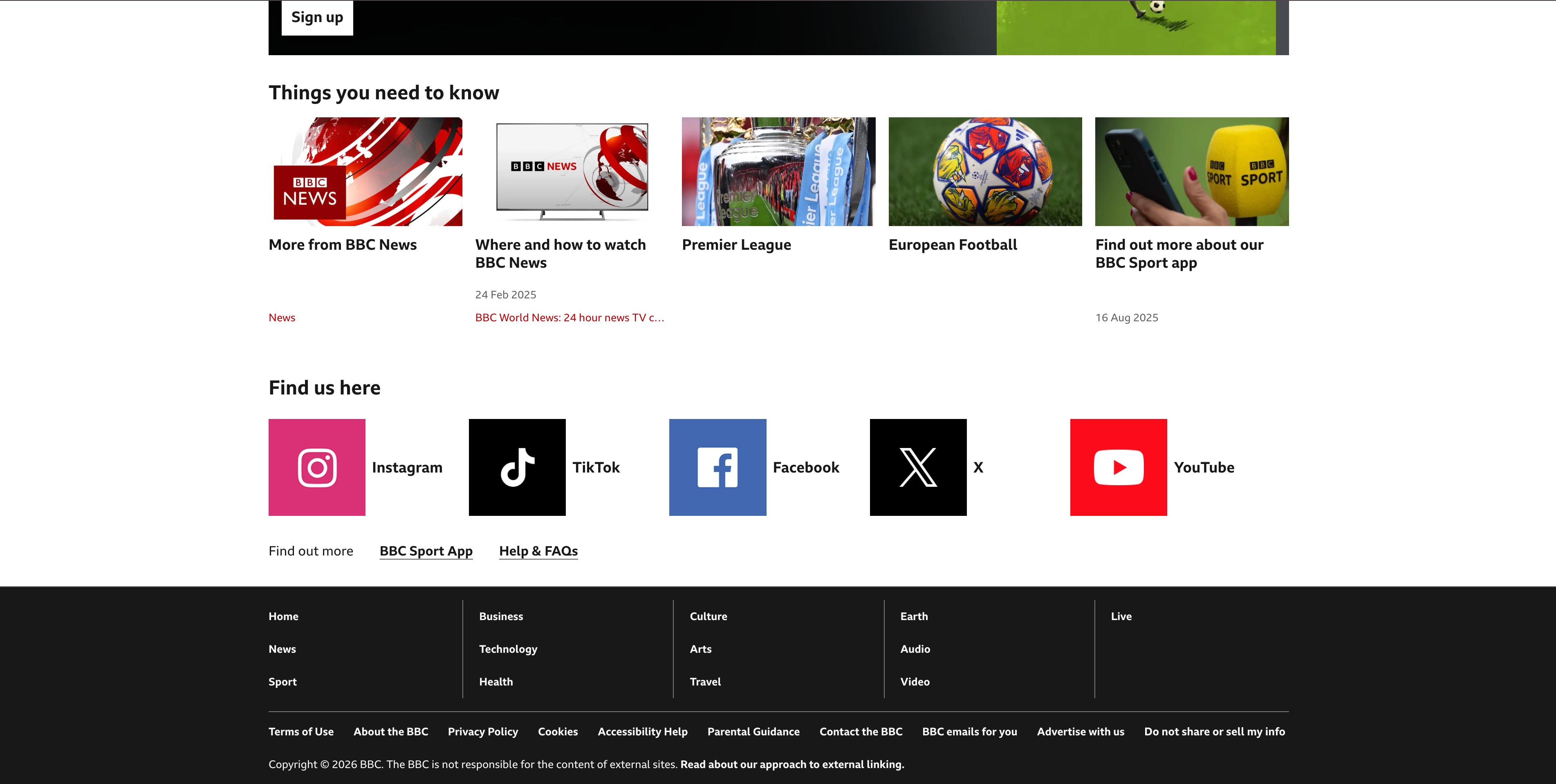
BBC Sport's app team published a public case study on switching to bottom navigation on mobile. The result: 7.4% more content consumed with the new pattern, validated through a 4-week multi-variant test. This is one of the few mobile navigation examples anywhere with real, published lift data behind it.
The desktop site uses a horizontal nav that adapts during major events — during the Olympics, the World Cup, a Commonwealth Games, a temporary "Olympics 2024" or "Euros 2026" link slides in as a top-level item, then disappears when the event ends. Dynamic navigation tied to real-world events is rare; most sites' nav doesn't change for years.
Three things to steal:
- Bottom navigation on mobile beats top navigation for content apps. Modern phones are too tall for top-of-screen taps to be comfortable. The thumb naturally rests at the bottom.
- Test navigation changes against content-consumption metrics, not nav-clicks. The right success metric for nav changes is "did people read/watch/buy more?" — not "did people click on the nav more?"
- Make room for time-bounded nav items. If your business has seasonal moments (events, sales, campaigns), bake into your nav structure the ability to surface a temporary item without rearchitecting everything else.
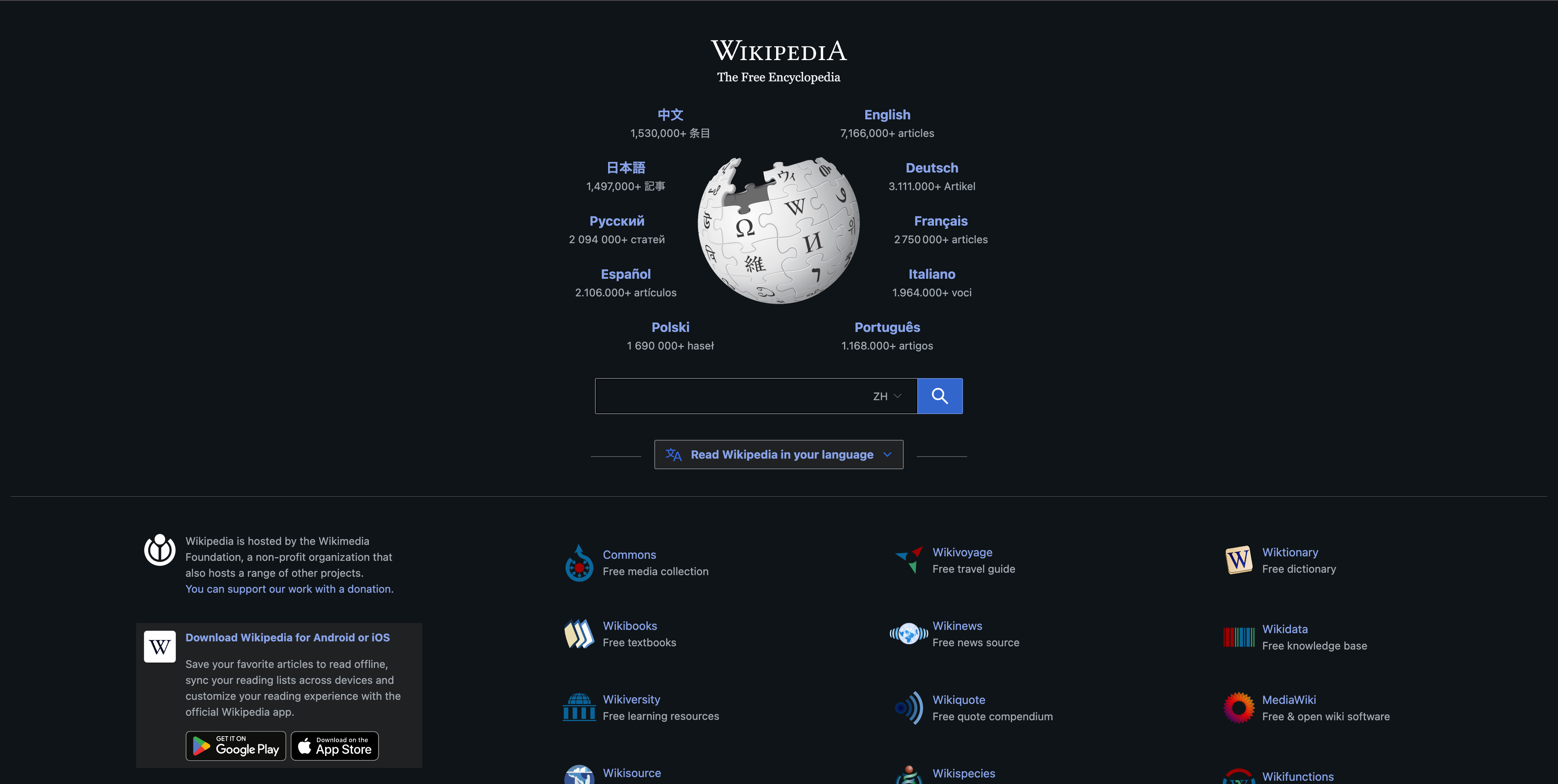
5. Wikipedia — When Sidebar Navigation Is Still the Right Answer
Type: Encyclopedia / reference site (60+ million articles)
Why it's worth studying: Goes against every modern convention and works perfectly.
Wikipedia is one of the most-visited sites in the world. Its navigation: a sidebar of links on every article (*Contents, Top, See also, References, External links*), a left-edge global navigation menu (*Main page, Random article, About Wikipedia, Contact us*), and an article-internal table of contents. There's no top horizontal nav. There's no mega menu. There's no hamburger nav doing the work for them on desktop.
This is heresy by 2026 design conventions — and yet, hundreds of millions of users navigate Wikipedia comfortably every day. The lesson: navigation conventions exist because they help most sites; they're not laws of nature. If your audience is research-oriented and your content is hierarchical (articles → sections → references), classic sidebar navigation examples like Wikipedia's still beat trendier alternatives. It's the most counterintuitive of the website navigation examples in this guide and probably the most instructive.
Three things to steal:
- A table of contents inside long content is navigation. Long articles, documentation, and reference content benefit from an in-content TOC sidebar, sticky as the user scrolls. This is a navigation element most blogs forget to add.
- Don't add nav your audience doesn't need. Wikipedia visitors don't browse by category — they search or follow links. So Wikipedia doesn't bother with category mega menus. Audit whether your nav serves your actual visitor patterns.
- Footer navigation can replace top navigation on text-heavy sites. When the article body is the entire experience, secondary navigation belongs at the bottom or in the sidebar — not above, where it competes with the content for attention.
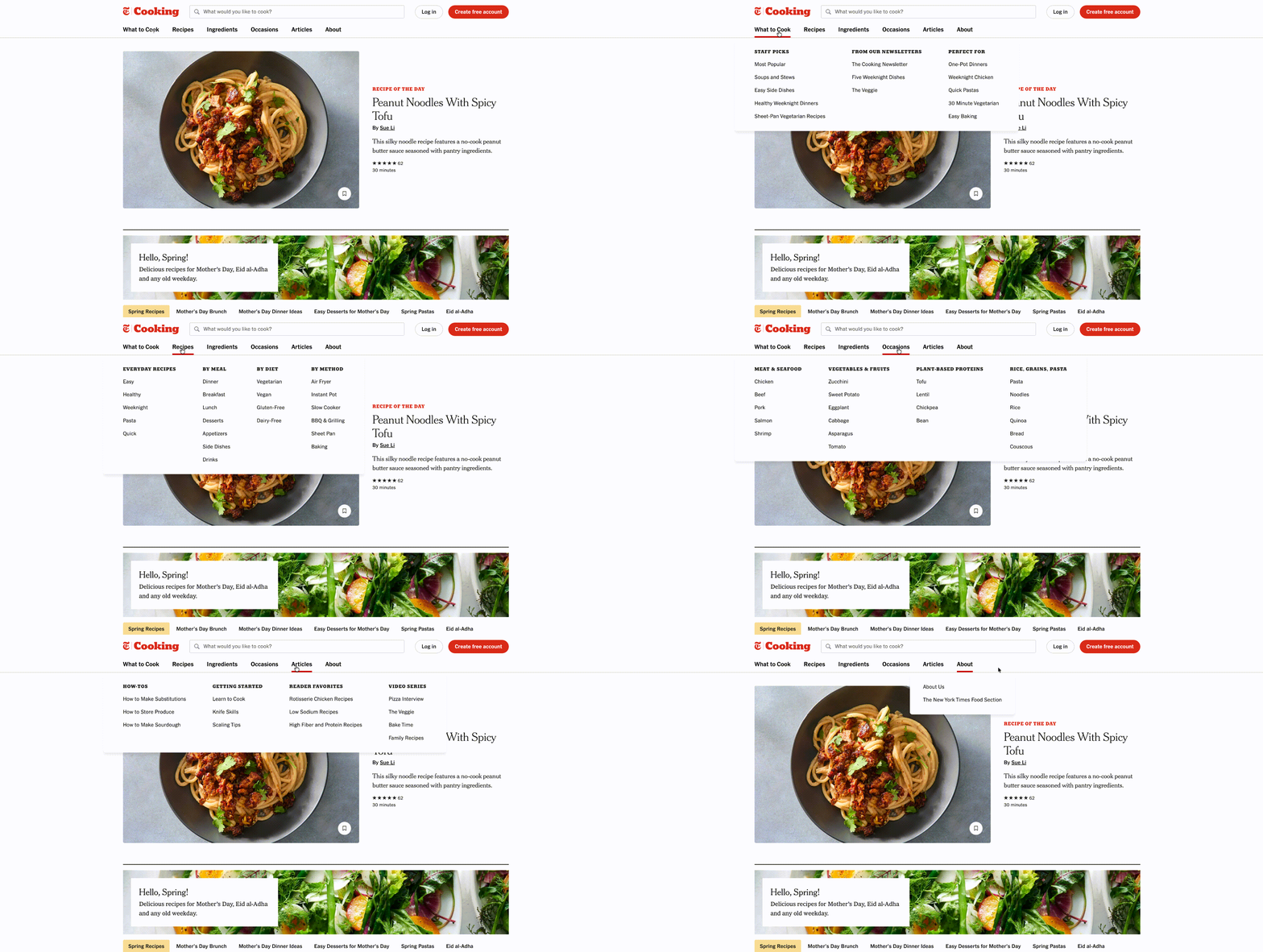
6. NYT Cooking — Filtering As Navigation
Type: Subscription content + tool
Why it's worth studying: Filtering is the primary nav, and labels are the secondary nav.
NYT Cooking's homepage doesn't open with categories — it opens with a search bar, then a horizontal scroll of curated collections (*30-Minute Meals, Easy Weeknight, Vegetarian, Comfort Food*). The traditional top nav (*Recipes, Collections, Saved Recipes, Shopping*) sits there but isn't the primary discovery mechanism. The primary mechanism is filtering: a robust set of facets (cuisine, diet, occasion, time, ingredient) that progressively narrow the entire catalog.
This is a pattern more content sites should consider. When your library is large and the visitor's intent is exploratory ("what should I cook?"), filters and curated collections work better than category trees.
Three things to steal:
- Curated collections are nav, too. A horizontal-scroll row of "Editor's Picks" or "Trending Now" is more useful than a 6-item nav for visitors with no specific destination in mind.
- Faceted filtering is navigation for any site with 200+ items. If you have a recipe site, a content library, a course catalog, or a product collection — invest more in filter UI than in nav UI. Filters scale with your content; nav doesn't.
- Save / bookmark is a navigation feature, not a feature feature. A "saved for later" view that the user actively curates is one of the most valuable navigation surfaces on a content site.
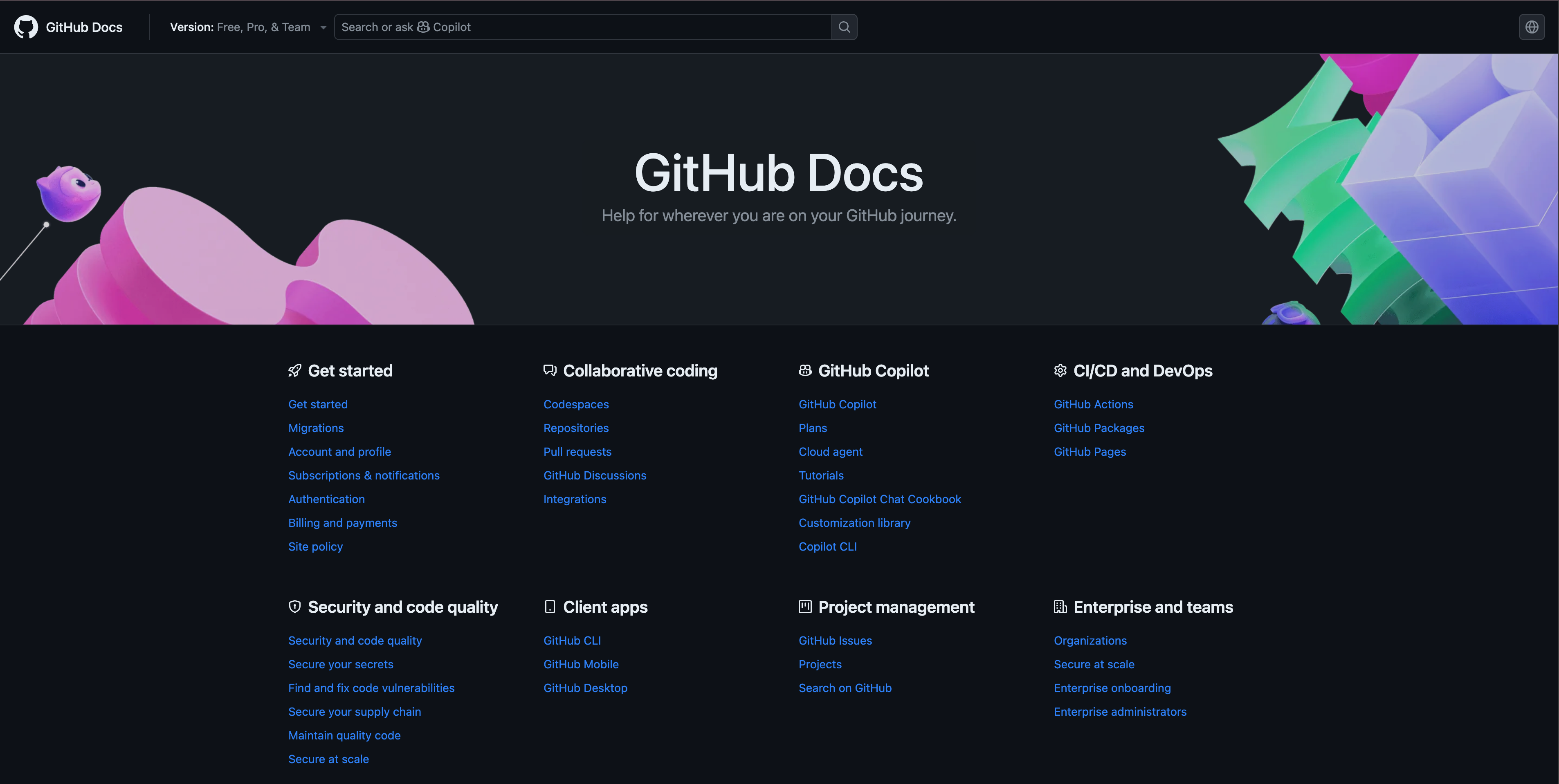
7. GitHub Docs — Documentation Navigation Done Right
Type: Technical documentation (3,000+ pages)
Why it's worth studying: A reference for any docs-style information architecture.
GitHub Docs serves developers across every level — first-time Git users learning to clone a repo, plus senior engineers debugging an Actions workflow. The navigation is a three-pane layout: products and topics on the left, the article in the center, an in-page table of contents on the right. The left nav is collapsible by section, the right TOC updates as you scroll, and breadcrumbs above the article tell you exactly where you are.
The crucial detail: nav state persists. If you collapse "GitHub Actions" → "Building and testing" because you don't care about it, that section stays collapsed when you click into a different topic. Most docs sites reset state on every navigation, forcing visitors to re-collapse the same things constantly.
Three things to steal:
- Three-pane layouts work for documentation, period. Left nav for product hierarchy, center for content, right for in-page TOC. Don't reinvent this for docs sites — copy it.
- Persist navigation state across page loads. Whatever the visitor has expanded, collapsed, filtered, or sorted — keep it that way until they explicitly reset it. Cookies or
localStorageare fine for this. - Breadcrumb navigation is non-negotiable for nested content. If your visitor is 4 levels deep, they need to see the path back to the top. Breadcrumb navigation is the cheapest navigation feature you can add and almost always pays for itself.
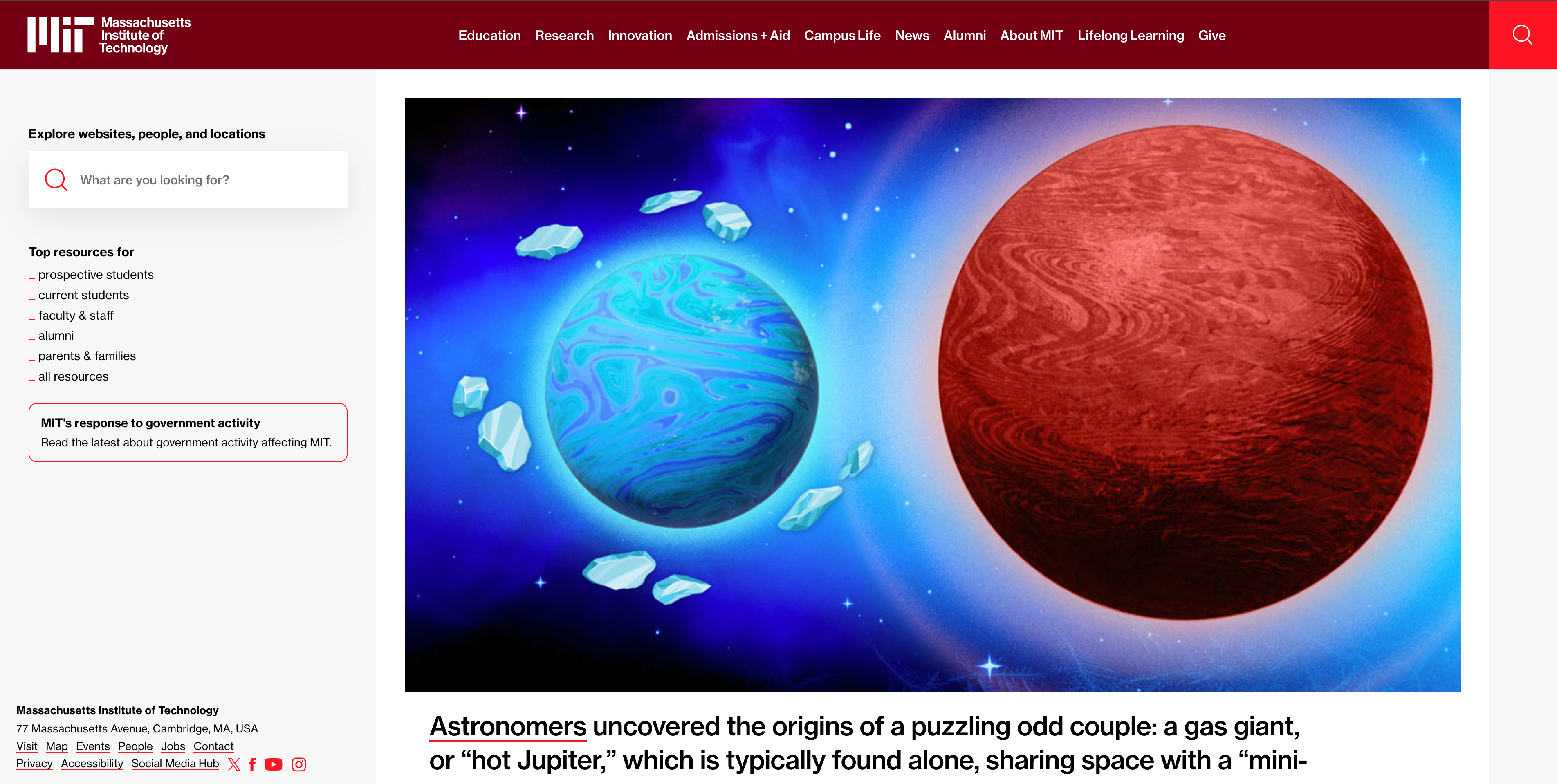
8. MIT — Massive Multi-Audience Education Site
Type: University / multi-audience institution
Why it's worth studying: Eight different audiences, one cohesive nav.
MIT's website serves prospective students, current students, faculty, alumni, donors, researchers, journalists, and the curious public — eight distinct audiences with eight distinct sets of needs. The navigation handles this through a "for…" pattern. The top nav is small (Education, Research, Innovation, Admissions + Aid, Campus Life, News, Alumni, About), but a "Quick Links" dropdown surfaces the most-frequent tasks per audience type ("Applying to MIT," "Apply for grants," "Visit campus," "Make a gift").
The home hero rotates through audience-specific content rather than picking a single primary message — accepting that there's no single most-important thing to say to all eight audiences simultaneously.
Three things to steal:
- Quick Links / Popular Links dropdown beats trying to cram everything into the top nav. A small dropdown of "what most people are here to do" works better than a 12-item top nav.
- For multi-audience sites, accept that the homepage will rotate. Don't try to find the one message that serves all your audiences. Rotate hero content by audience or by visit timing.
- Audience-specific subdomains for power users. MIT has
studentlife.mit.edu,news.mit.edu,alum.mit.edu— each with its own nav optimized for that audience. The main.eduis the front door; the subdomains are the rooms.
9. Decathlon — When Sport Verticals Reshape the Mega Menu
Type: Multi-vertical sports retail (90+ sports)
Why it's worth studying: Mega menu organized by sport, not by product type.
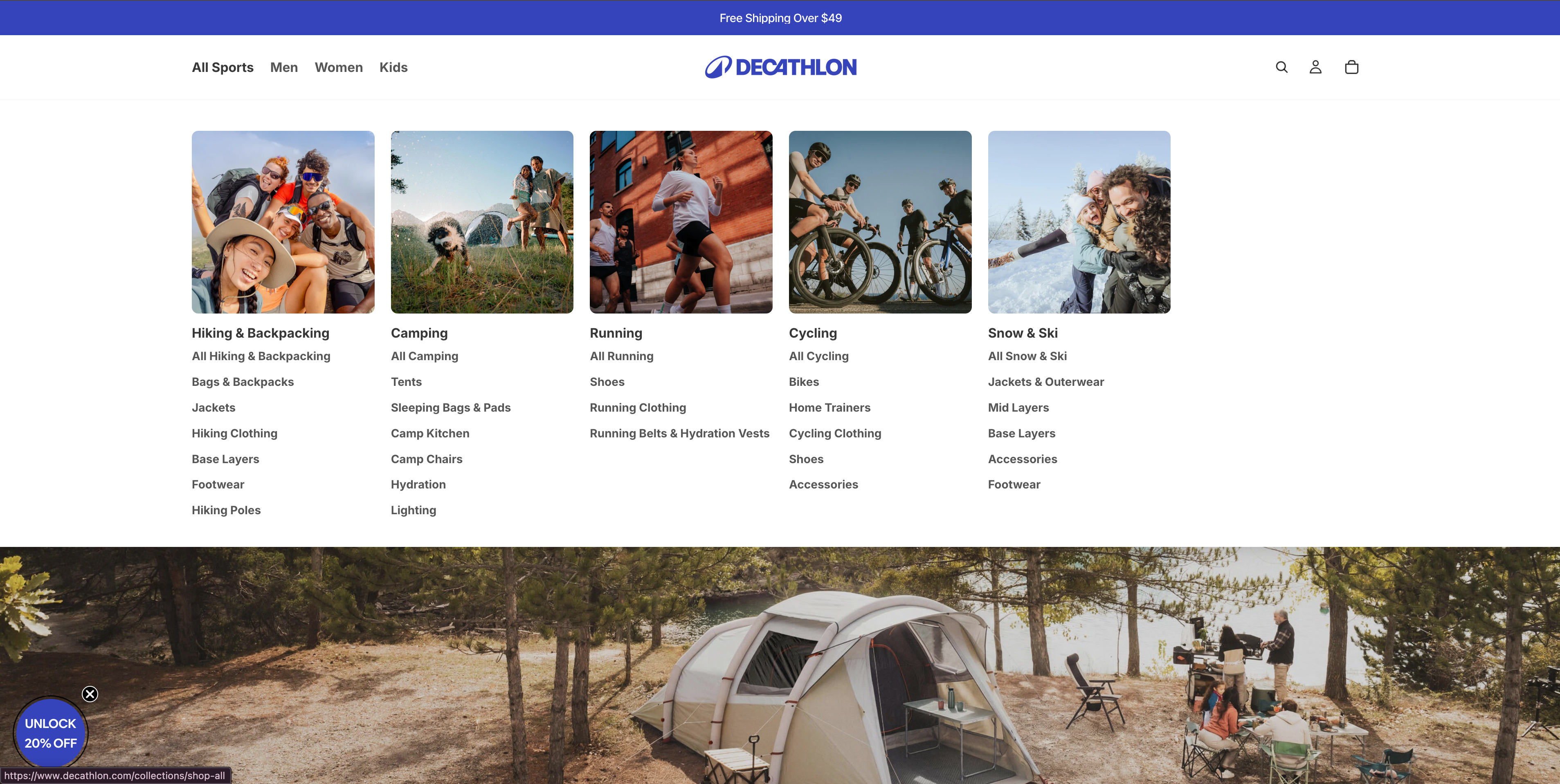
Decathlon sells products across 90+ sports — running, cycling, swimming, climbing, fishing, and dozens more. Most sports retailers organize their nav by product type (shoes / clothing / equipment). Decathlon organizes it by sport. Hover "Sports" and you get a categorized list: Cycling, Running, Hiking, Fitness, Water Sports, Team Sports, Mountain Sports, Combat Sports. Click into "Cycling" and you get road, mountain, urban, kids — then within each, the relevant gear.
This matches how customers actually think. Someone shopping for a running shoe doesn't think "I'm in the shoe department"; they think "I'm a runner." The nav matches the mental model.
Three things to steal:
- Organize by use-case, not by SKU type. If your customers identify by activity, profession, or job-to-be-done, organize the nav around that, not your warehouse categories.
- Localize the nav, not just the language. Decathlon's French site leads with cycling and football; the US site leads with hiking and running. Cultural sport priorities differ by country, and the nav reflects that.
- Nav imagery should signal category, not just decorate. Decathlon uses small action photos (cyclist, runner, hiker) next to each sport category — the visitor recognizes their activity instantly. Imagery as a navigation aid, not as ornament.
10. Smashing Magazine — Content Navigation That Respects Reader Intent
Type: Web design / dev publication
Why it's worth studying: Respects how readers actually consume long-form content.
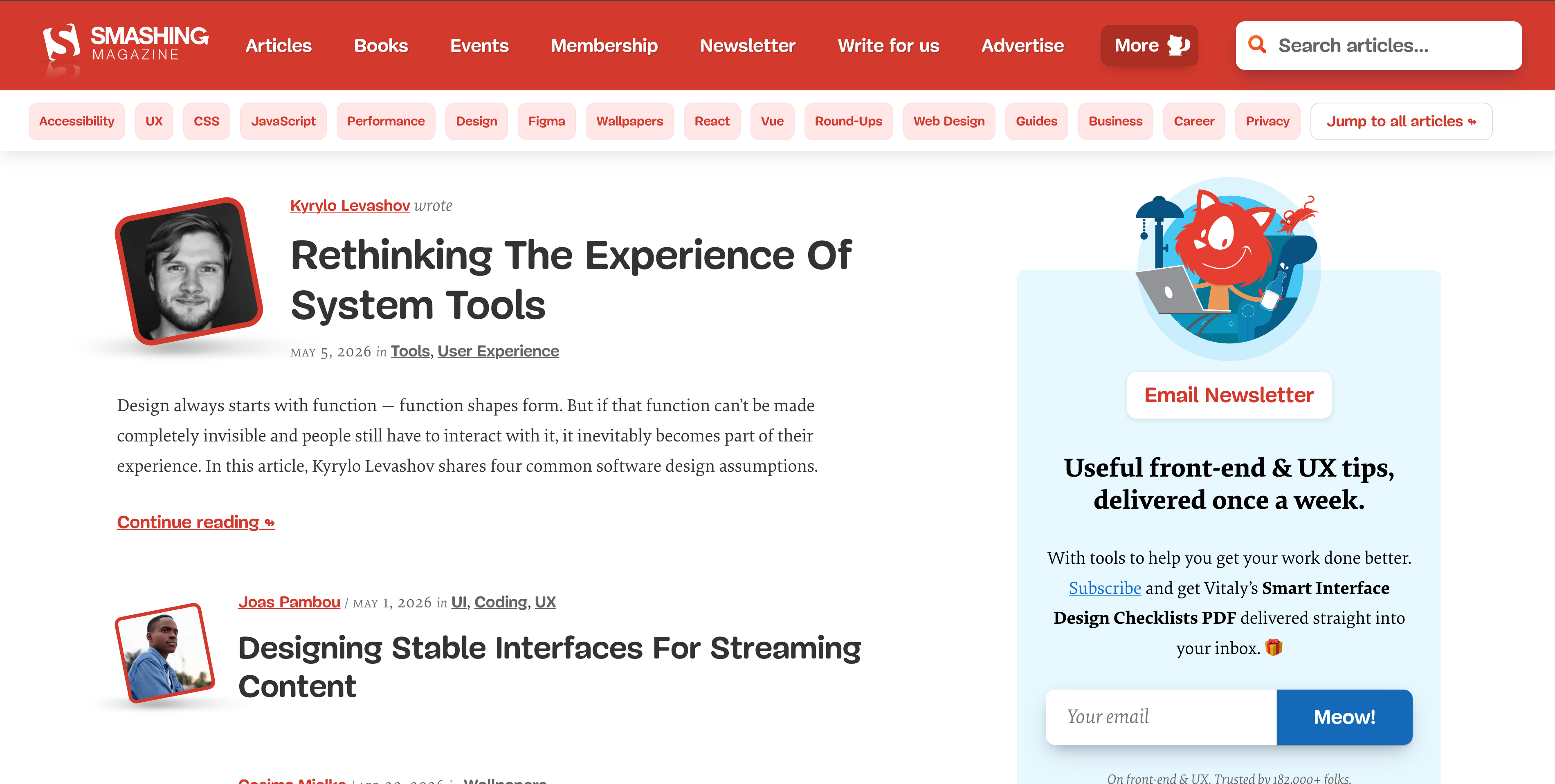
Smashing Magazine's nav is small (*Magazine, Articles, Books, Podcasts, Workshops, Membership*), but every article has its own internal navigation: a sticky table of contents, a "in this article" jump menu, an estimated reading time, and a sticky author block with a link to "More from this author." The article is the navigation surface, not the global menu.
For long-form content, this is the right pattern. Readers who landed via a Google search don't care about the global nav — they care about getting through the article they came for, then maybe finding similar content. Smashing optimizes for that exact path.
Three things to steal:
- In-article nav beats global nav for long-form content. Sticky TOC, jump links, "more by this author" — these earn more clicks than your global menu on long articles.
- Reading time estimates are navigation. Knowing "12 min read" before committing tells the visitor whether to engage now or save for later. Both responses are wins.
- "Related content by topic" is more useful than "popular content overall." Smashing surfaces related articles by tag, not by global popularity. The visitor reading about CSS Grid wants more CSS Grid content, not the highest-trafficked article on the site.
5 Common Mistakes That Quietly Break Navigation
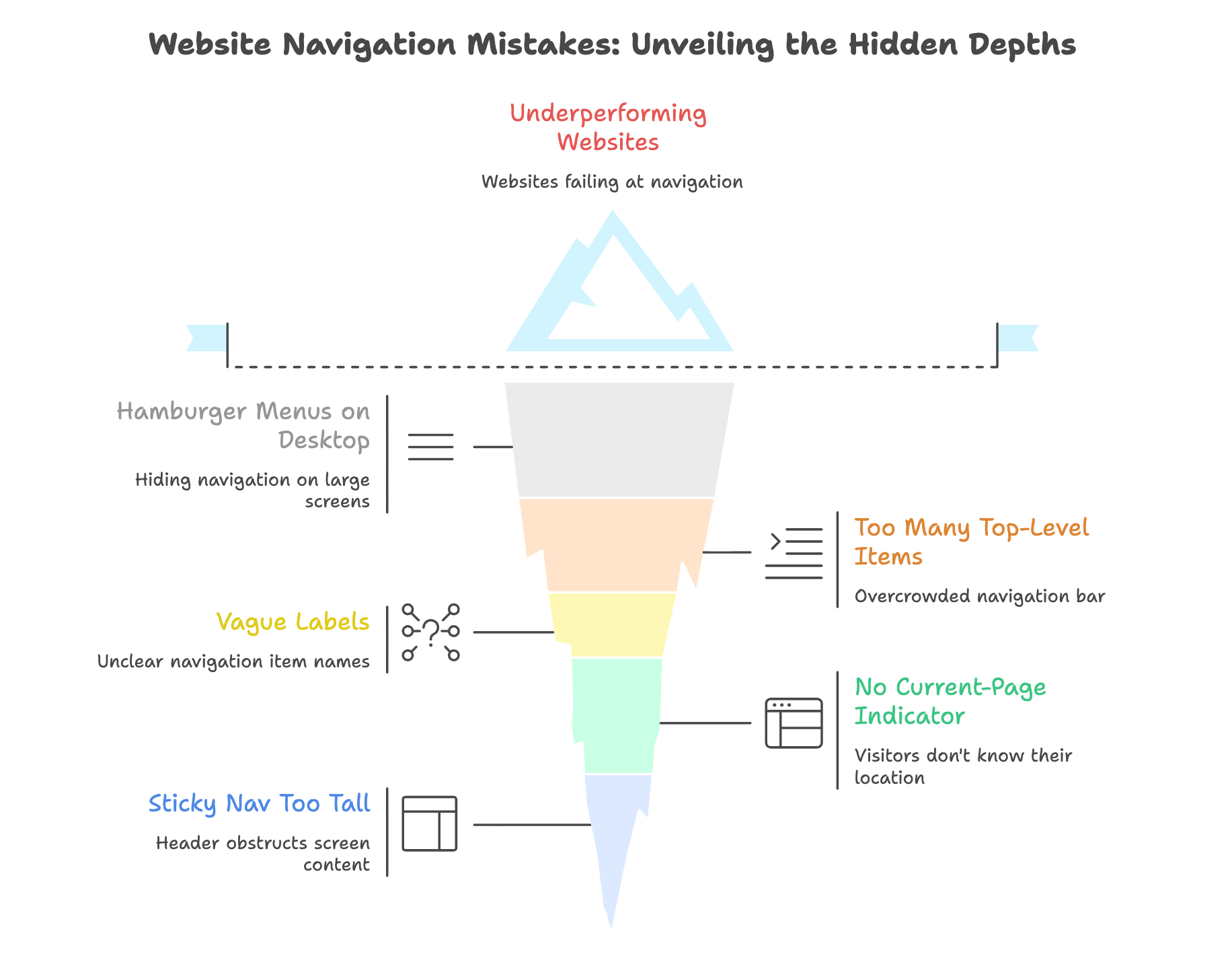
After looking at the 10 strong website navigation examples above, the failure patterns become consistent. Most underperforming sites I audit fail at least one of the following — and most of these errors are also what separates the website navigation examples that work from those that don't:
- Hamburger menus on desktop. Hiding navigation behind three lines on a 1440px monitor wastes the space you have. Use it. Hamburger is for mobile (and sparingly even there).
- Too many top-level items. If your top nav has 9+ items, your information architecture is broken upstream of the design. Aim for 5–7 items at most. Beyond that, group into a "More" dropdown.
- Vague labels. "Solutions" and "Resources" are the most-clicked words in B2B nav and the least useful. Write what's actually in there: "For Marketing Teams," "Customer Stories," "Pricing Guide."
- No current-page indicator. A visitor on
/pricingshould see "Pricing" highlighted in the nav. This is fundamental and frequently skipped. - Sticky nav that's too tall. A 96px sticky header on mobile eats a third of the screen. Keep sticky navigation to 56–64px max, or hide it on scroll-down and reveal it on scroll-up.
Quick Reference: Which Navigation Pattern Fits Your Site?
Cross-referencing the 10 website navigation examples above into a quick decision matrix:
Site type | Recommended pattern | Avoid |
Landing page (single product) | Sticky top navigation bar with 3–5 items + clear CTA | Mega menus, hamburgers on desktop |
E-commerce (under 200 SKUs) | Top nav with category dropdowns + search | Mega menus (overkill) |
E-commerce (1,000+ SKUs) | Mega menu organized by use-case + filtering | Long flat dropdowns |
Documentation | Three-pane layout (left vertical navigation / content / right TOC) | Top-only nav |
Content / media | Top nav + bottom mobile nav + faceted filters | Sidebar-only nav on mobile |
Multi-audience institutional | Small top nav + Quick Links + audience subdomains | Cramming all audiences in one nav |
Long-form publication | Minimal global nav + strong in-article nav (sticky TOC, jump links) | Heavy global nav stealing focus |
This matrix is the shortcut version of getting website menu design right — pick the row that matches your site type and the rest of your navigation decisions follow.
How to Build Navigation That Works with Wegic
Building good navigation isn't really a design exercise — it's a content-architecture exercise. The labels and structure matter more than the visual treatment. The 10 website navigation examples above all share that discipline: they earned their reputation through information architecture, not visual design.
Wegic is a conversational AI website growth system that generates a site from a chat brief, including a sensible navigation structure based on what your site actually contains. Instead of adding pages and then awkwardly fitting them into a template's nav, the AI builds the IA from your description.
Phase 1: Brief Your AI
Open Wegic and chat with Kimmy, your AI project manager. Use any of the 10 examples above as a reference:
"Build me a documentation site like GitHub Docs — three-pane layout, left navigation grouped by product, in-page table of contents on the right, breadcrumbs above each article, persistent collapsed-section state. Search bar at the top of the left nav."
Or for a content site:
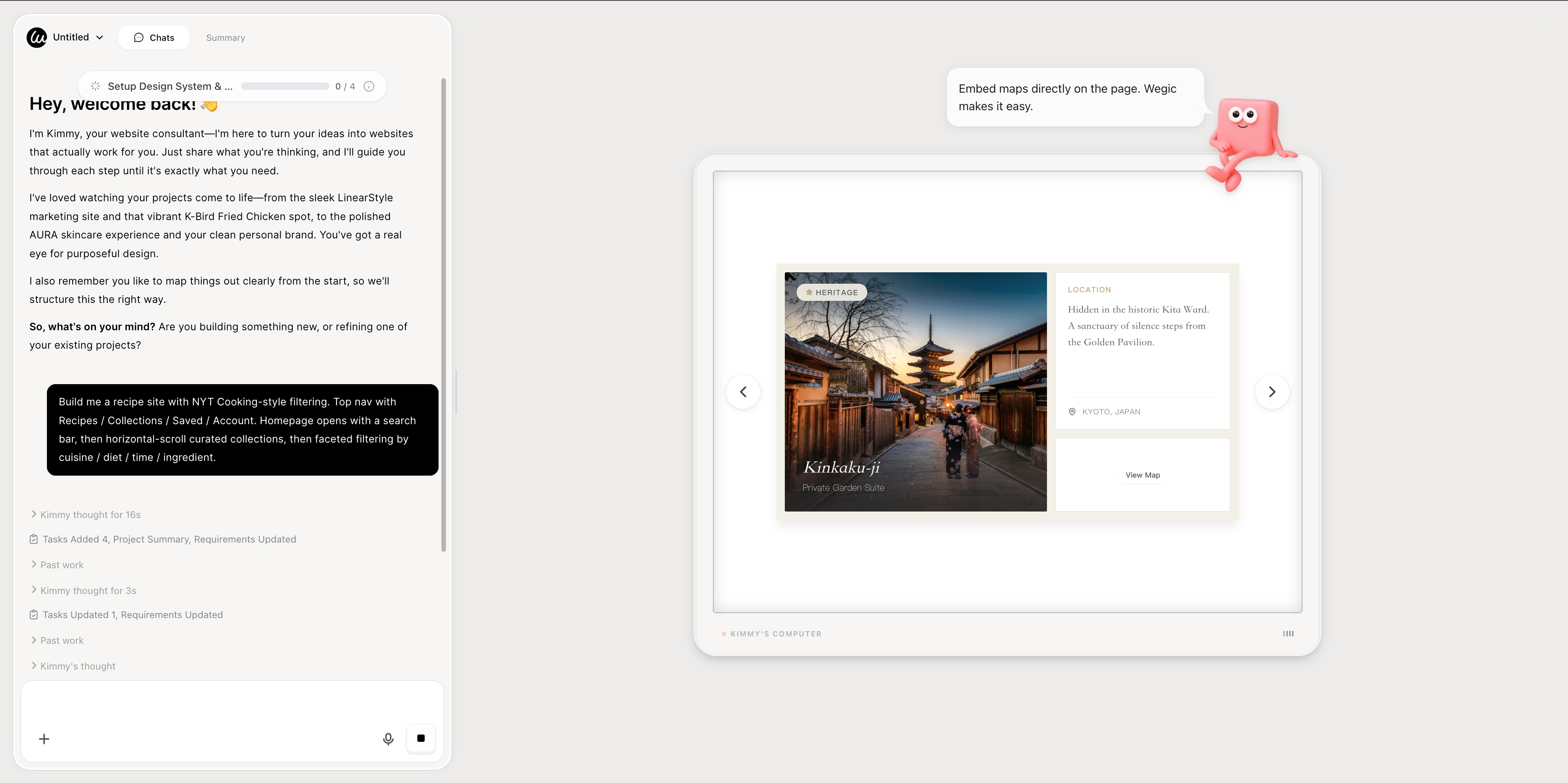
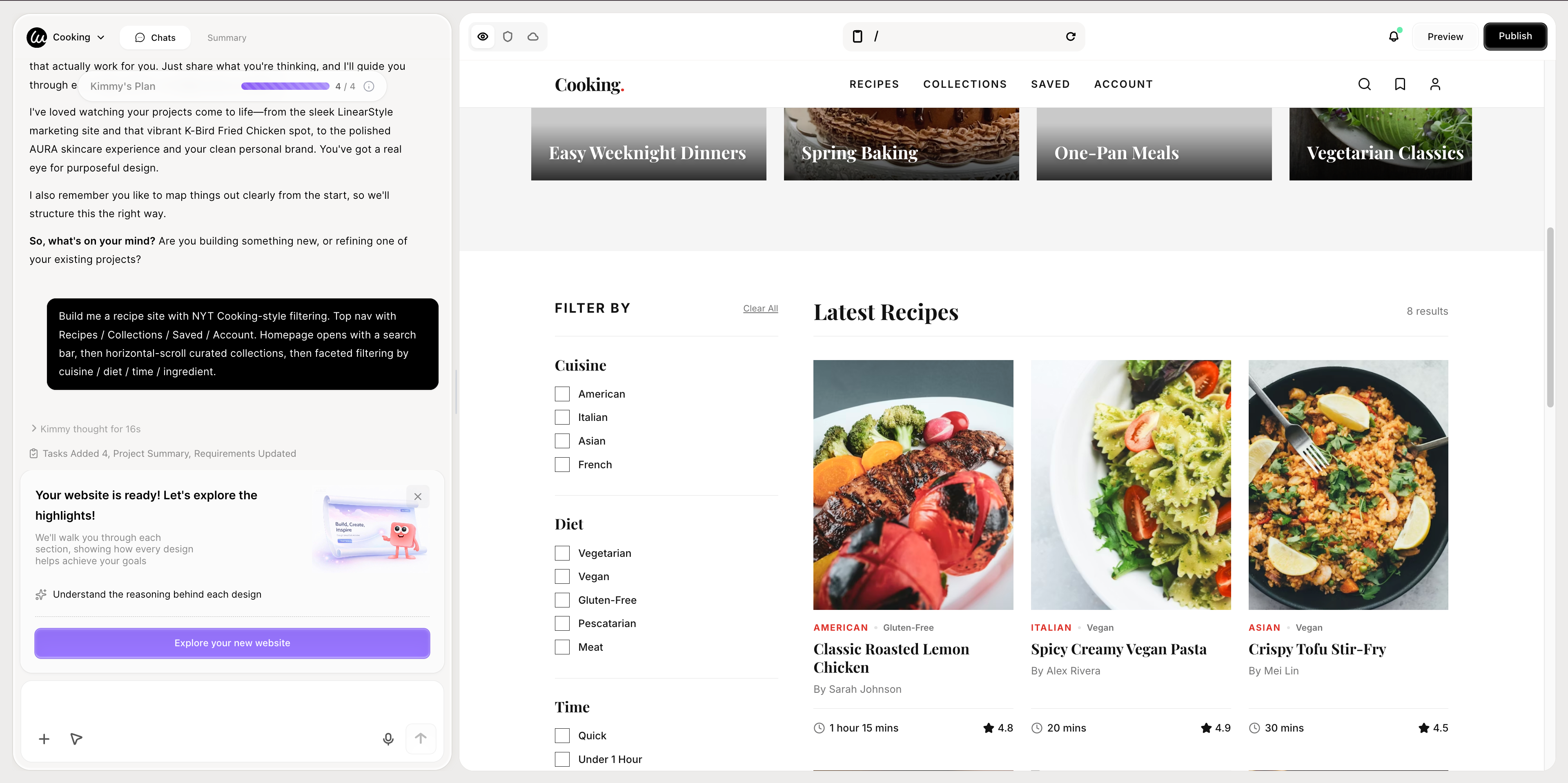
"Build me a recipe site with NYT Cooking-style filtering. Top nav with Recipes / Collections / Saved / Account. Homepage opens with a search bar, then horizontal-scroll curated collections, then faceted filtering by cuisine / diet / time / ingredient."
Phase 2: AI Assembly in Under a Minute
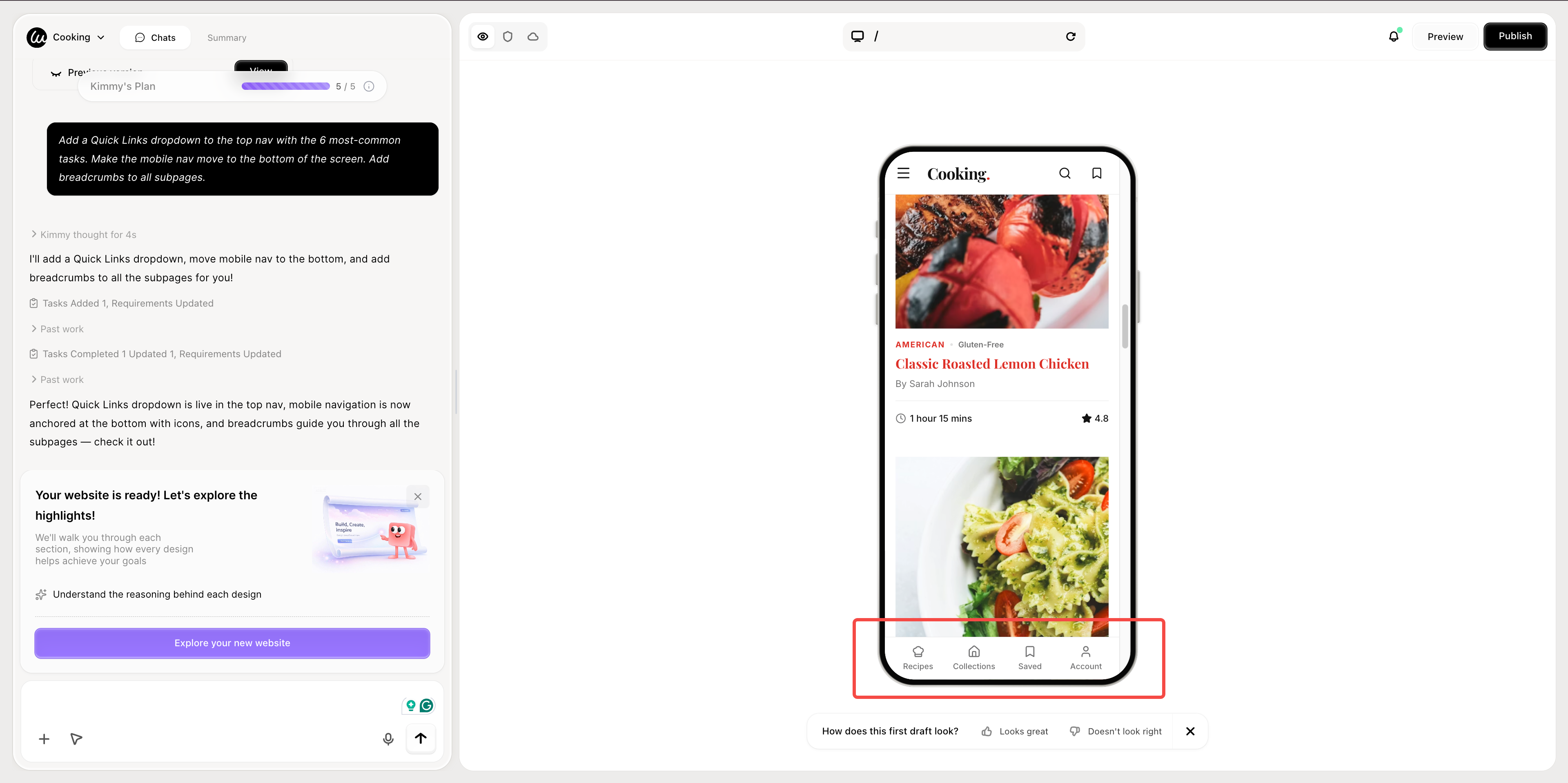
Wegic generates a fully responsive multi-page site with the navigation pattern described — sticky on desktop, bottom-of-screen on mobile, breadcrumbs where appropriate, current-page indicators. For a step-by-step walkthrough of the conversational generation flow, see the Wegic tutorial.
Phase 3: Edit by Conversation
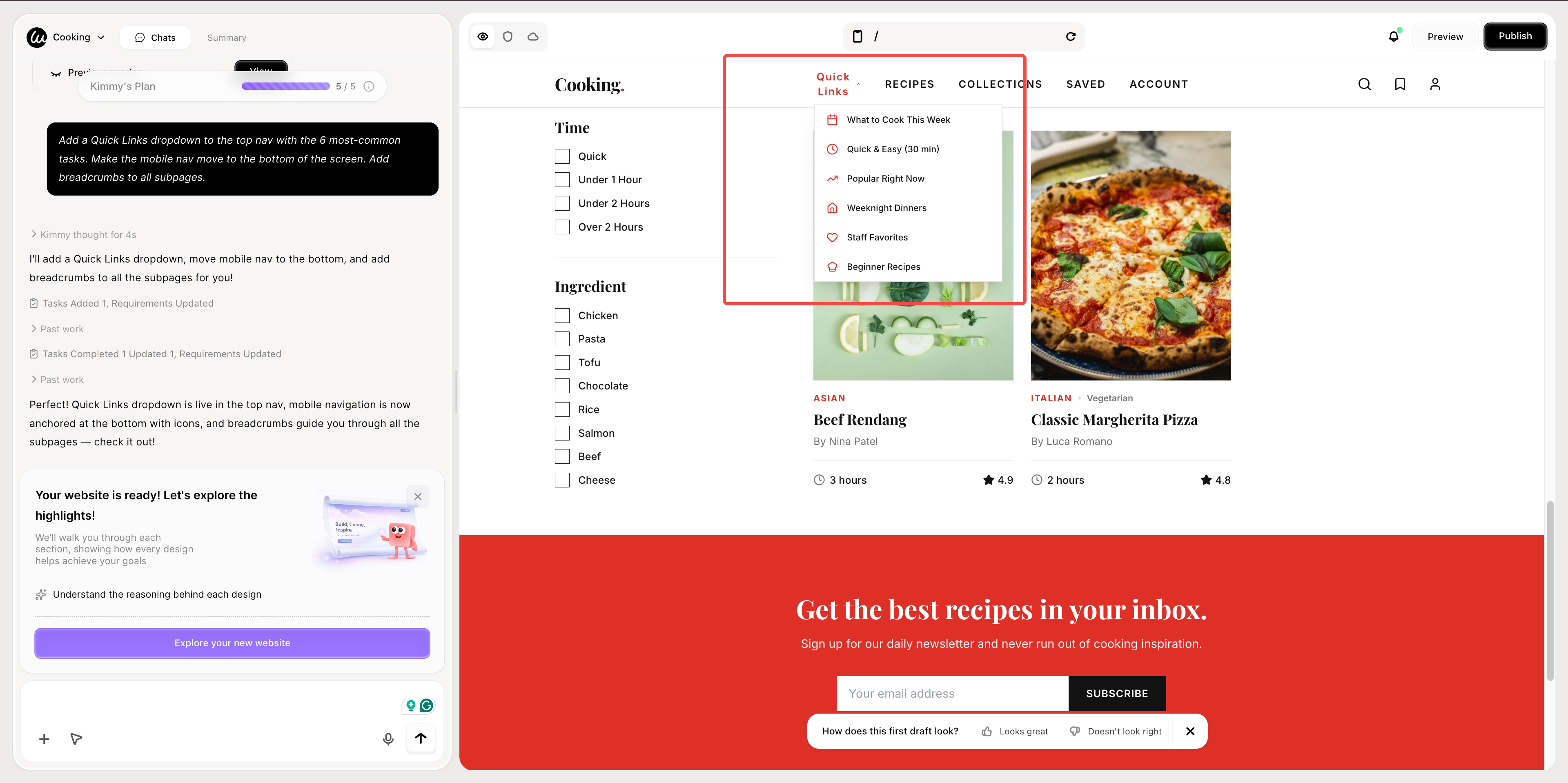
"Add a Quick Links dropdown to the top nav with the 6 most-common tasks. Make the mobile nav move to the bottom of the screen. Add breadcrumbs to all subpages."
Wegic proposes 2–3 design options before applying — so you don't break your nav state by accident.
Phase 4: Publish with Hosting Included
Hit Publish. Hosting, custom domain, auto-generated
sitemap.xml, and SEO metadata are all bundled. For a comparison of how Wegic stacks against other AI builders on information architecture specifically, see our in-depth review of 5 web design AI tools. For more inspiration across other categories, see our aesthetic websites collection.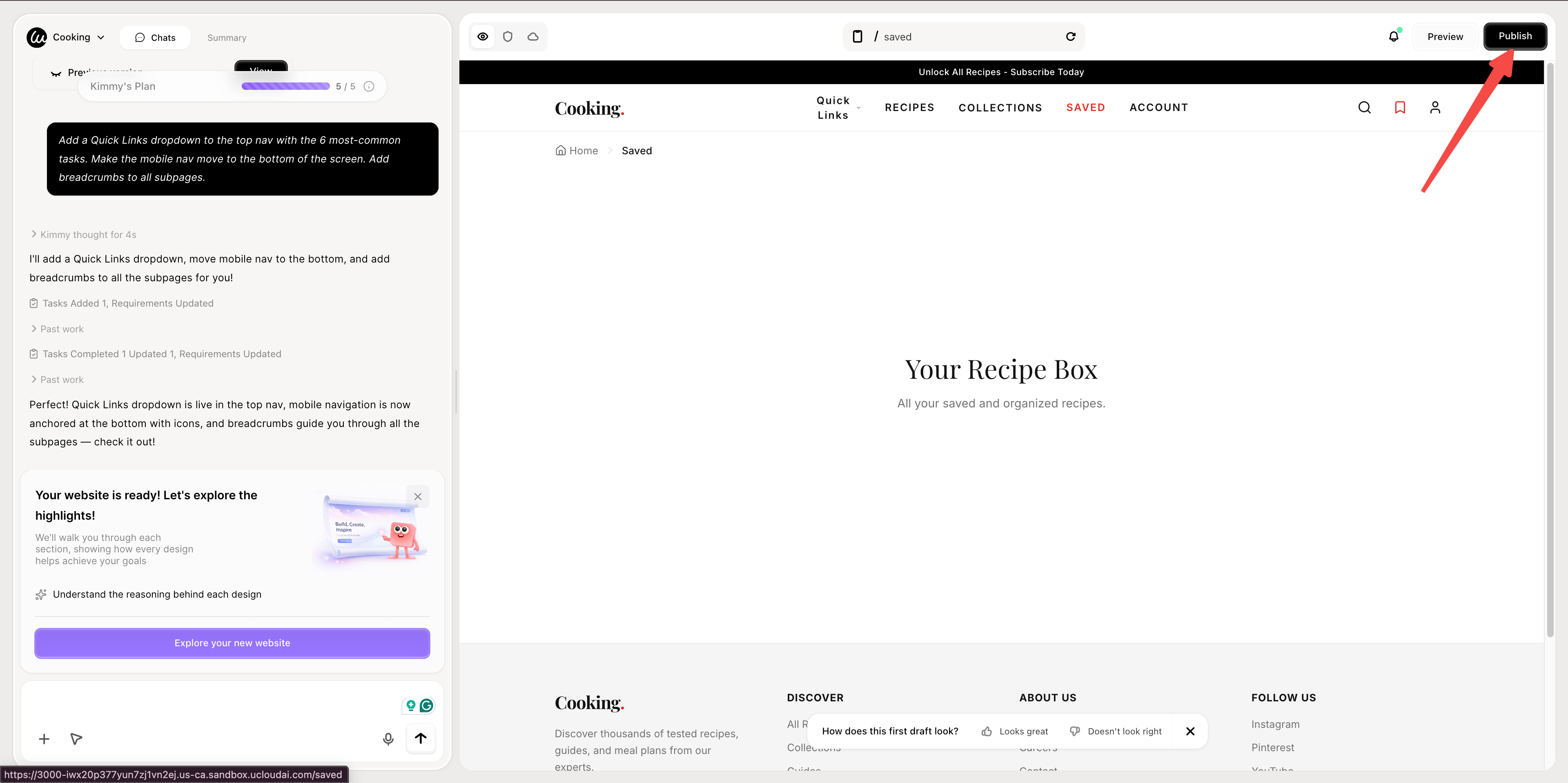
Conclusion: The Best Website Navigation Examples Are Invisible
The 10 website navigation examples in this guide all share one trait — at no point does the visitor have to think about how to move around. Every link is where they expect it. Every label means what it says. Every page tells them where they are and what's next.
That's the standard. Navigation is a success when nobody comments on it. Pick the patterns from the website navigation examples above that match your site type, copy with discipline, and audit yourself against the five common mistakes. The result will outperform 90% of the competition — most of which is built on the same recycled inspirations.
For more inspiration across categories, see our broader website homepage examples guide and our responsive website examples collection.
👇 Click below to start with Wegic
FAQs
What are the most important website navigation best practices?
Six universal website navigation best practices drawn from the 10 website navigation examples above: (1) limit top-level items to 5–7; (2) use plain-language labels visitors recognize, not internal-org labels; (3) include a current-page indicator on every nav element; (4) make breadcrumb navigation visible on any page more than two levels deep; (5) ensure mobile nav uses bottom-of-screen for content apps and works with one thumb; (6) put non-conversion content (About, Careers, Press) in the footer, not the top nav.
What's the difference between primary and secondary navigation?
Primary navigation is the top-level menu — the 5–7 most important destinations on your site, present on every page. Secondary navigation is everything else: footer links, in-page tables of contents, "related content" rows, breadcrumbs, faceted filters, sidebar nav inside specific sections. The error most sites make is cramming secondary navigation into primary, making the top nav unreadable. Decide what's primary based on visitor intent, not internal politics.
Are mega menus a good idea in 2026?
Sometimes. Mega menu examples like IKEA's work because the site has 12,000+ products that genuinely need categorization. Mega menus fail when sites use them as a dumping ground for organizational links that don't belong in the top nav. Three signs your mega menu is wrong: (1) you have under 100 SKUs but a 4-column mega menu; (2) the mega menu contains "About Us" or "Press"; (3) categories within the mega menu have only 1–2 items. If any of these is true, replace the mega menu with simpler dropdown menu design or split content to footer navigation.
What about hamburger menus?
Hamburger menu patterns are appropriate for mobile (where horizontal space is limited) but inappropriate for desktop (where you usually have enough space to show the full nav). The exception: brand-led portfolio sites or single-page apps where minimalism is the entire design statement. For most B2B, e-commerce, content, and SaaS sites, a hamburger on desktop hides discoverability behind a tap that the visitor has to guess to perform.
Should I use a sticky navigation?
Sticky navigation is appropriate when your visitor is scrolling through long content and might want to navigate elsewhere mid-scroll. It's appropriate for long-form articles, documentation, and product pages. It's overkill for short marketing pages. Three rules if you do use it: (1) keep sticky height to 56–64px max; (2) hide on scroll-down, reveal on scroll-up to give back screen space; (3) ensure the sticky nav has a visible current-section indicator if your page has multiple anchor sections.
How do I handle navigation on a content-heavy site?
Three patterns work, depending on content type. For information architecture that's hierarchical (e.g., docs), use a three-pane layout like GitHub Docs. For exploratory content (e.g., recipes, articles), use search + curated collections + faceted filters like NYT Cooking. For reference content (e.g., encyclopedias, knowledge bases), use sidebar navigation with strong in-article TOCs like Wikipedia. The shape of your content determines the right nav, not the other way around.
What's the best mobile navigation pattern in 2026?
For content and social apps, bottom navigation bars outperform top navigation — they're easier to reach with a thumb on tall modern phones. For e-commerce, top nav with a hamburger and a persistent search/cart works better. For documentation and reference sites, a slide-in left drawer triggered from a hamburger works best. The single rule: never disable pinch-to-zoom on mobile, never make tap targets smaller than 44×44 pixels. Both are accessibility violations and reasons your responsive navigation menu will fail mobile audits.
What are the best navigation tools for designers in 2026?
For inspiration galleries: Navbar.gallery, Footer.design, Land-book. For interactive design: Figma's component library and prototyping tools. For testing: BrowserStack and real-device testing. For implementation: Tailwind UI, Headless UI, and Radix UI ship excellent accessible nav components. For non-developers building from scratch, AI website builders like Wegic generate navigation patterns based on your content description rather than starting from a template — which often produces better website navigation ideas than picking from a fixed library.